News & Events

Waypoint Technology Solutions Blog

Waypoint Technology Solutions has been serving the Erie area since 2011, providing IT Support such as technical helpdesk support, computer support, and consulting to small and medium-sized businesses.

Biometric Checkout is Coming (But Don’t Hold Your Breath Just Yet)

Biometric Checkout is Coming (But Don’t Hold Your Breath Just Yet)

Love them or hate them, self-service checkout registers in brick-and-mortar stores are here to stay… especially considering that research has demonstrated that Gen Z has about twice the level of buy-in to the automated point-of-sale terminals as Gen X does, and that self-checkout is the predominant form of payment today. With this success, many have wondered how welcome biometric payment processing might be.

As it turns out, it would seem it isn’t.

0 Comments
Continue reading

Tip of the Week: 3 Neat Features of PowerPoint 365

Tip of the Week: 3 Neat Features of PowerPoint 365

You know that a software has made its mark when its name becomes synonymous with the type of software it is. For instance: PowerPoint.

This element of Microsoft 365 is well-known enough to often be used as a catch-all phrase for any presentation software. Less well-known, however, are some of the cool features and functions that PowerPoint has to offer. Today, we’re sharing a few of these features with you.

0 Comments
Continue reading

One of Google’s Many Projects Gives Us a Look at Practical AI Usage

One of Google’s Many Projects Gives Us a Look at Practical AI Usage

While artificial intelligence is frequently hyped up to the point that it seems to be plucked from the realm of science fiction, its true applications are actually much more mundane. That being said, these applications are often the ones that show the most promise in terms of the value they have to offer society.

For instance, let’s consider the work that Google is doing through something called Project Green Light.

0 Comments
Continue reading

Don’t Take Any Chances: Get a VPN Today

Don’t Take Any Chances: Get a VPN Today

With data security being a hot commodity with hackers, it’s no surprise that businesses want to do everything they can to protect their assets. One method for doing so is implementing a Virtual Private Network, or VPN, that can effectively obfuscate data while it’s in transit. Let’s go over some of the most valuable reasons why your business should be using a VPN.

0 Comments
Continue reading

Four Technologies You Can Use to Better Protect Your Data in Transit

Four Technologies You Can Use to Better Protect Your Data in Transit

A lot of business is done over the Internet, so securing transactions is crucial to protect sensitive information and prevent unauthorized access or even fraud. There are multiple things you can do to improve your data while it is in transit; and, today, we take a look at four. 

0 Comments
Continue reading

Browser Hijacking Attacks are a Serious Threat

Browser Hijacking Attacks are a Serious Threat

With technology being an integral part of our lives and society at large, cyberthreats continue to evolve and pose significant risks. One such threat that is on the rise is browser hijacking attacks. Let’s explore the dangers of these attacks, including the techniques employed by hackers, and how small and medium-sized businesses can protect themselves.

0 Comments
Continue reading

The Problems that Cybercrime Can Pose for Business

The Problems that Cybercrime Can Pose for Business

Unfortunately for small businesses, cyberthreats aren't limited to large corporations and enterprises. Even small businesses and local shops face the constant risk of cyberattacks. Let's take a look into some concerning statistics regarding one of the fastest-growing cyberthreats.

0 Comments
Continue reading

Tip of the Week: Three Ways to Help You Manage Your Time More Effectively

Tip of the Week: Three Ways to Help You Manage Your Time More Effectively

Effective time management is crucial for productivity and achieving your goals. Unfortunately, it’s not always easy to be efficient. In today’s blog, we offer three very useful tips to improve your own professional efficiency.

0 Comments
Continue reading

The Insecurity of IoT Devices is a Serious Concern… So Why Aren’t Businesses Worried?

The Insecurity of IoT Devices is a Serious Concern… So Why Aren’t Businesses Worried?

The IoT, or Internet of Things, is everywhere. There’s a relatively good chance that a device that would be part of the IoT is within your reach right now, perhaps even on your person. Businesses of all kinds use the IoT for various purposes as well, but behind this usage lies significant risk from cyberthreats, and a shocking number of businesses seem to accept this risk without much concern… as in, the vast majority of surveyed businesses utilizing the IoT demonstrated a lack of protection, but seemed not to be bothered by it.

0 Comments
Continue reading

Microsoft is Working to Revolutionize Long-Term Data Storage

Microsoft is Working to Revolutionize Long-Term Data Storage

Considering the amount of data created on a daily basis, there will eventually come a time when the amount of data will outweigh our ability to store it. The technology giants at Microsoft are taking the initiative to find a solution to this dilemma, and they are working with the University of Southampton in England to make this vision come to life.

0 Comments
Continue reading

Five Ethical Decisions Innovative Businesses Need to Wrestle With

Five Ethical Decisions Innovative Businesses Need to Wrestle With

Nowadays, companies grapple with a myriad of ethical challenges, necessitating responsible decision-making to keep the data they store secure. Some decisions that are made straddle the ethical line of right and wrong. Let’s take a look at five uses of technology that are controversial.

0 Comments
Continue reading

VR is an Interesting Tool That’s Growing in Use

VR is an Interesting Tool That’s Growing in Use

Virtual reality (VR) is a technology that often leaves people uncertain. More and more people have experienced it recently and the question keeps popping up whether or not VR is going to be a useful tool for businesses. We take a look at modern VR in today’s blog.

0 Comments
Continue reading

Where Right-to-Repair Laws Stand Right Now

Where Right-to-Repair Laws Stand Right Now

The Right to Repair movement has evolved from a simple idea into a full-fledged campaign, with numerous states enacting measures to enhance the rights of consumers and businesses who use various technologies daily. Let's take a moment to assess the current status of this movement and explore what it means for businesses.

0 Comments
Continue reading

Microsoft’s Project Silica Aims to Address Long Term Data Storage Issues

Microsoft’s Project Silica Aims to Address Long Term Data Storage Issues

Over the past several years, it has come to the attention of people in various industries that there is going to be a time, very soon, where the data that needs to be stored is going to outweigh our ability to store it. Microsoft, in a collaboration with the University of Southampton in England has taken aim at this very problem and has come up with some innovative solutions. 

0 Comments
Continue reading

Three Benefits of Digital Security Cameras

Three Benefits of Digital Security Cameras

Digital security cameras offer numerous advantages over their analog counterparts, making them a popular choice for enhancing security in various settings. Here are three key benefits of using digital security cameras.

0 Comments
Continue reading

How-to: Email Security User Guide - Barracuda Threat Protection

Barracuda Email Protection is a cloud-based email security service that protects both inbound and outbound email against the latest spam, viruses, worms, phishing, and denial of service attacks. The Barracuda Email Security Service web interface includes the Message Log from which you can manage your quarantined messages. Additionally, you can set account preferences based on features enabled for your account by the administrator.


To access your Email Security user account, log into the Barracuda Email Security Service corresponding to your region:


Permissions may include:

  • Modify quarantine notification report settings. Set email receipt frequency with a list of messages in your quarantine account. Once received, you can select whether to delete or deliver these messages to your email address.
  • Create exemption (accept mail from), Block, or quarantine policies for email addresses, domains, and users.
  • Manage quarantine inbox delivery or delete quarantined messages.
  • Change password (manually added users only)
  • Link Accounts. Use the current account as an alias and add additional email addresses in the same domain for which the quarantined email is to be forwarded to this account.

Login IDs

Unless otherwise communicated, your Windows account is synchronized to the Barracuda Email Protection Portal. You will not need to create an account, but in some cases, you may be prompted to verify your Microsoft 365 Credentials. 

Message Log

The Barracuda Email Security Service web interface includes the Message Log, which you can use to manage your quarantined messages.

Quarantined Mail

When enabled, you are notified regularly when you have quarantined messages. Your Waypoint administrator sets the default quarantine notification interval, or if you have permission, you can set the interval on the Settings > Quarantine Notification page.

Please Note that quarantined messages are deleted after 30 days. For more information, see Quarantine Notifications.

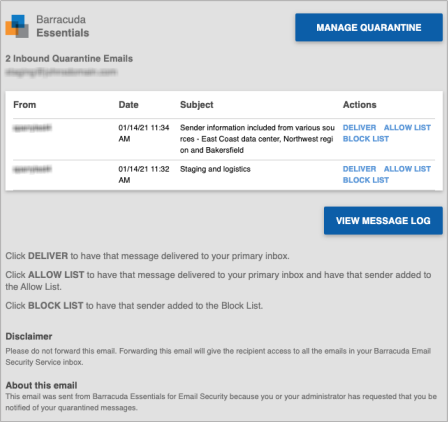
The links in the Actions column allow the user to:

  • Deliver – Click to deliver the message to your regular inbox.
  • Allow List – Click to allow the sender. All future messages from the sender are allowed and go directly to the user's regular inbox.
  • Block List – Click to have the sender added to the block list.

Figure 1. Sample Quarantined Email Notification
essQuarantineDigest1.png

Manage Mail

Use the Message Log to manage mail. The Message Log page displays all email messages from the Barracuda Email Security Service to your account. You can filter messages by All, Allowed, UI Delivered, Not Allowed, Blocked, Deferred, or Quarantined using the drop-down menu. Note that messages are deleted after 30 days.

Figure 2. Filter Messages in the Message Log

messageFilterOptions.png

Messages are blocked due to the following:

  • Spam and virus policies set by your administrator for the domain and
  • Your administrator sets email address or domain block policies and emails from other users for the domain. 

Messages are deferred for various reasons. Click the Help icon on the Message Log page for more information and details on searching for and filtering messages.

Select one or more messages from the Message Log page, then click on an action. To select all messages, select the check box at the top of the Message List.

Depending on the message filter, once you select one or more messages, you can take the following actions:

  • Allow List – Senders of selected messages are added to the allow List; note that you cannot add blocked messages to the allow List.
  • Recategorize – You can change the category when one or more categorized emails are selected. For example, if the message is categorized as Corporate but should be categorized as Marketing Materials, you can change the category via the Recategorize drop-down. This action submits this email message for recategorization to your selected category. If you select Other and enter a custom category, the category updates for that particular email message. For more information, see Email Categorization below.
  • Export – Selected messages are exported to a CSV file. When prompted, enter a file name and select whether to save to your local desktop or network.
  • Deliver – The service attempts to deliver the selected messages to your mailbox; note that you cannot deliver messages blocked for Advanced Threat Protection (ATP). If a message is successfully delivered, the Delivery Status changes to Delivered. The mail remains in the log until you select the message and click Delete. A notice will be displayed in your browser window if the mail cannot be delivered, and the Delivery Status will not change. If messages are not delivered to the recipient's mailbox, it may be due to a filter on the mail server or a service on your network catching the mail as spam. Check with your system administrator for more information. Additionally, check your local trash/spam folder for the mail.

Figure 3. Message Actions

messageActions.png

Email Categorization

If the Reason for a message in your Message Log displays as Email Categorization, the email from this sender is categorized as not necessarily spam but something that you may have subscribed to at one time but no longer want to receive—for example, newsletters and memberships, or marketing information. Email Categorization assigns some of these emails to specific categories, which the administrator can decide to allow, Block, or quarantine. Supported categories display in the Message Log Reason field as:

  • Email Categorization (corporate) – Emails sent by a user at an authenticated organization from an MS Exchange Server that involves general corporate communications. Does not include marketing newsletters.
  • Email Categorization (transactional) – Emails related to order confirmations, bills, invoices, bank statements, delivery/shipping notices, and service-related surveys.
  • Email Categorization (marketing) – Promotional emails from companies such as Constant Contact.
  • Email Categorization (mailing lists) – Emails from mailing lists, newsgroups, and other subscription-based services such as Google and Yahoo! Groups.
  • Email Categorization (social media) – Notifications and other emails from social media sites like Facebook and LinkedIn.

View Message

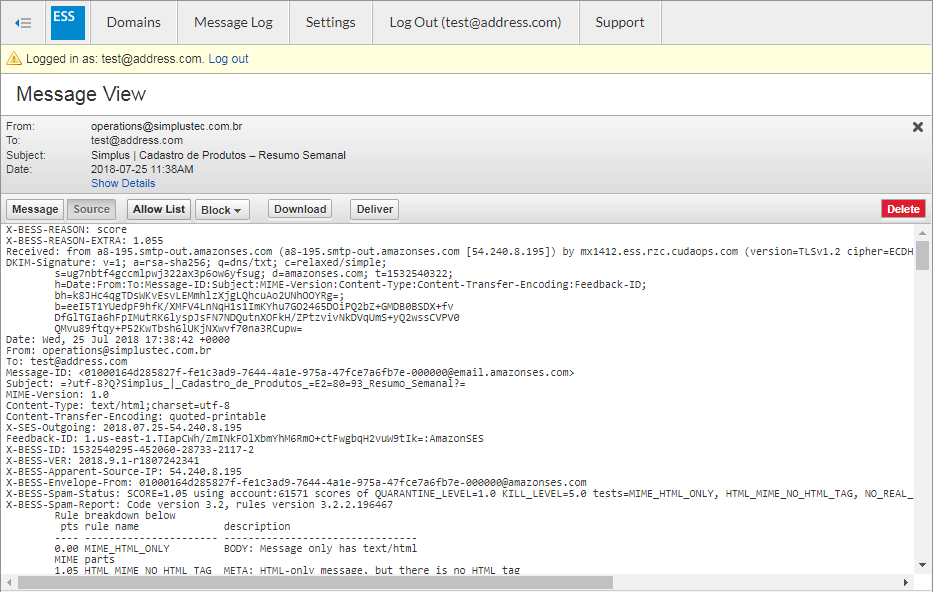
To view the message source, headers, and available options, double-click the message; the message content will be displayed. You can take the following actions:

  • Click Source to view all headers
  • Click Allow List to allow the sender
  • Click Block and select whether to block the message Domain or Email
  • Click Download to download the message to your local system or network
  • Click Deliver to deliver the message to your regular mailbox
  • Click Delete to remove the message. (This option is available for quarantined messages only.)
  • Click Report as Incorrectly Blocked for a message that should have been delivered to your regular mailbox. This includes messages that are not spam. (This option is available for quarantined and blocked messages only.)
  • Click Report as Incorrectly Delivered for a message that should have been blocked. This includes spam messages.

Alternatively, you can use the Settings > Sender Policy page to exempt or block senders. See Set Exempt and Block List Policies later in this article for additional information.


Figure 4. Message Source with Headers
Source_Details.png

Set Quarantine Notification Interval

Quarantined messages are deleted after 30 days.

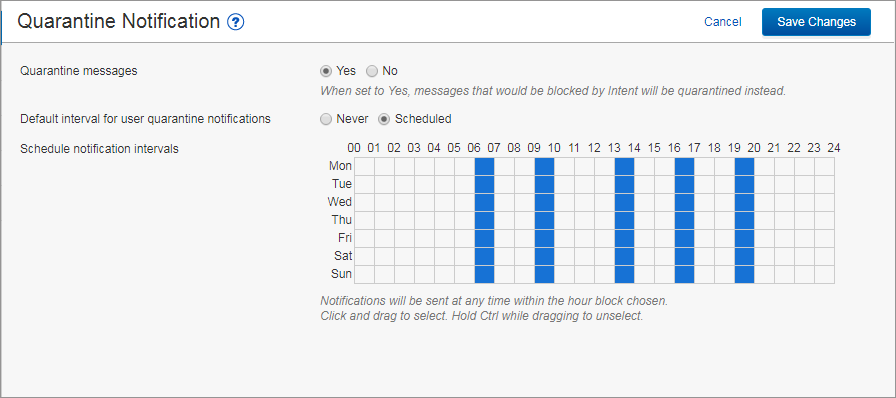
You can direct the Email Security Service to notify you by email when you have quarantined messages. When set to Yes, messages that would usually be blocked are instead quarantined. This setting does not apply to messages blocked by Sender or Content policies. On the Settings > Quarantine Notification page, select Scheduled. Click and drag in the Schedule notification intervals section to set the day and time for quarantine notification email delivery. Click to clear a selection. Alternatively, select Never if you do not want to receive quarantine notifications. Click  Save Changes to save your settings.

Figure 5. Set Quarantine Notification Interval
User_Quarantine_Notification.png

Set Exempt and Block List Policies

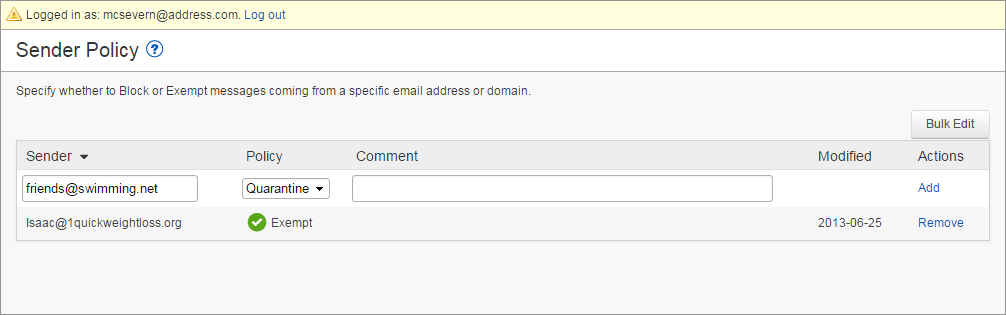
Use the Sender Policy page to specify whether to block, allow, or quarantine messages from a specific sender or domain. These are called exempt/block list policies. To create a new policy:

  1. Go to Settings > Sender Policy page, and enter the email address or domain in the Sender field.
  2. Select whether to BlockExempt, or Quarantine the sender from the Policy drop-down menu.
  3. Optionally, you can add a comment to indicate why you created the policy.
  4. Click Add to save the policy:
    Sender_Policies.png
  5. To remove a policy, click Remove in the Actions column for the sender policy you want to remove.

ink Quarantine Accounts

You can add additional email addresses in the same domain for which the quarantined email will be forwarded to this account. From the Settings> Linked Accounts page, enter the email address in the Account field, select whether to Link the account without verification and click Add

Tags:
0 Comments
Continue reading

How-to: Send Encrypted Messages with Barracuda Add-in

Send Encrypted Messages

Encrypt outbound messages for secure message transmission. 

This feature is only for use with the Barracuda Email Threat Protection platform.

To encrypt an outbound message:

  1. Log into Outlook or OWA, and select to create, forward, or reply to a message. The compose message pane opens.
  2. Click the Encrypt Message Add-In

    Encrypt_Msg.png

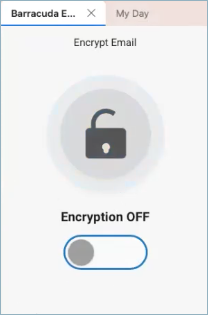
  3. The Encryption Window will display. (By default, Encryption is off) 

  4. add-in-encryption-off.png

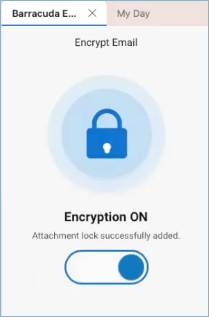
  5. Click to toggle Encryption to on. The encryption attachment is added to your message.

    Do not delete the attachment. If deleted, the message will not be encrypted.

    add-in-encryption-on.png

  6. Complete and send the message.

Tags:
0 Comments
Continue reading

How-to: Use Barracuda Email Protection Add-In

In this article, you will learn how to use the Barracuda Email Protection Add-In to  block emails, mark them as unwanted spam, 

NOTE:

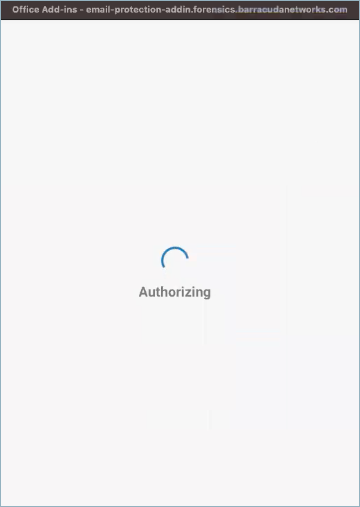
The Microsoft 365 authorization pop-up may temporarily appear after you take action with the Add-In. This briefly confirms your credentials and then disappears. There is nothing you need to do.


ir-authorizing.png


How to Handle Reported Email

Once a message has been reported as suspicious, it will be sent for further analysis and moved out of the Inbox to a selected folder. To determine which folder you prefer:

  1. Log into Outlook or OWA and select a message. The read message pane opens.
  2. Click the Barracuda Email Protection Add-In at the top of the window to open the actions panel.
    add-in-on-menu-bar.png
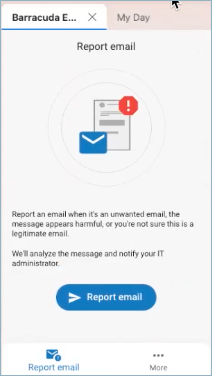
  3. The Report Email screen is displayed.
    add-in-report-email.png
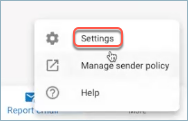
  4. Click More at the bottom and select Settings.
    add-in-settings.png
  5. Click on Move email and select the account folder that will receive reported messages (i.e. Deleted ItemsJunk Email, a custom folder, etc.)

Report Suspicious Email

Report emails as suspicious and send to Barracuda Networks for further analysis.

  1. Log into Outlook or OWA, and select a message you want to report. The read message pane opens.
  2. Click the Barracuda Email Protection Add-In at the top of the window to open the add-in's actions panel.

    add-in-report-email.png
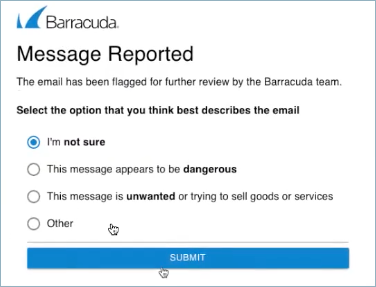
  3. Click the Report email button and select the reason that best describes the email.

    add-in-select-reason.png
  4. Click the Submit button.

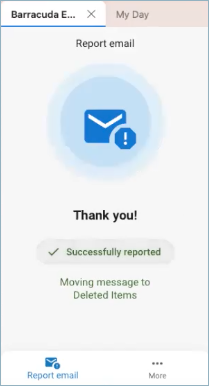
    add-in-reported-success.png

0 Comments
Continue reading

Tip of the Week: Archiving Android Apps to Save Space

Tip of the Week: Archiving Android Apps to Save Space

Back in April of this year, Google announced that the Android platform would be given the capability to archive unused applications to help preserve the precious storage space on the devices…provided that the device was almost out of available space. This auto-archive feature is now available to all users, regardless of the storage left on their device.

0 Comments
Continue reading

Microsoft Rolls Out Changes to Teams Collaboration App

Microsoft Rolls Out Changes to Teams Collaboration App

Microsoft developed the Teams platform with the aim of enhancing collaboration among individuals. The rise of remote collaboration has been ongoing for several years, and the COVID-19 pandemic solidified its place as a standard feature in business operations. Recently, Microsoft has introduced several enhancements to the platform to further augment its functionality.

0 Comments
Continue reading

Nathan's Corner

The landscape of business is intrinsically tied to technology, and as companies evolve, so does the complexity of their IT requirements. From cybersecurity threats to remote work infrastructure, businesses face constant challenges that demand more th...

Understanding IT

Get the Knowledge You Need to Make IT Decisions

Technology is constantly evolving, and keeping up can feel overwhelming. Whether you want to understand cybersecurity threats, explore automation, or learn how regulations like PCI DSS impact your business, we’ve made it easy to access clear, straightforward insights on key IT topics.

Insights to Understanding IT

Contact Us

Learn more about what Waypoint Technology Solutions can do for your business.

Waypoint Technology Solutions
Mailing Address
PO Box 6164
Denver, Colorado 80206